
A Google Ads account is attractive to attackers: it has a payment method attached and can serve ads immediately. Whoever takes it over runs their own ads at your expense, and quite often it ends in a suspension, because Google first shuts the account down to protect it. That is why Google tightened things in 2026: passkeys for sensitive actions, multi-party approval and stricter rules for the Google Ads API.
In this article I show what has changed, how to set up passkeys and access properly, what to watch out for when switching agencies, which phishing schemes I know and what to do step by step after an attack. Statements about Google features are based on the Google Ads Help Center and the Google Account Help Center, and the sources are listed at the end. Where I add my own assessment from practice, I say so.
What changed in 2026
| Change | What it means for you |
|---|---|
| Passkey for sensitive actions | New users, access changes, account links and billing details need a passkey |
| Free email domains | According to Google, users with addresses like @gmail.com will no longer be able to perform sensitive actions in the future |
| Multi-party approval | A second administrator confirms changes to users and roles |
| Google Ads API | Passkeys for affected API users since August 5, 2026 |
On the passkey requirement, the Google Ads Help Center says the feature is being rolled out to or tested with a subset of advertisers. The help page does not give a start date. In May 2026, Search Engine Roundtable quoted an email from Google to advertisers stating that starting July 15, a Google passkey will be required for certain sensitive actions.
On free domains, the Google Ads Help Center says that anyone who accesses Google Ads with an email address from a free domain (for example @gmail.com or @yahoo.com) will no longer be able to perform sensitive actions in the future. Google does not give a date for this. For me it is still the most important point of the whole change: if you manage your account with a private Gmail address, you should add an administrator with a business address now.
Setting up passkeys
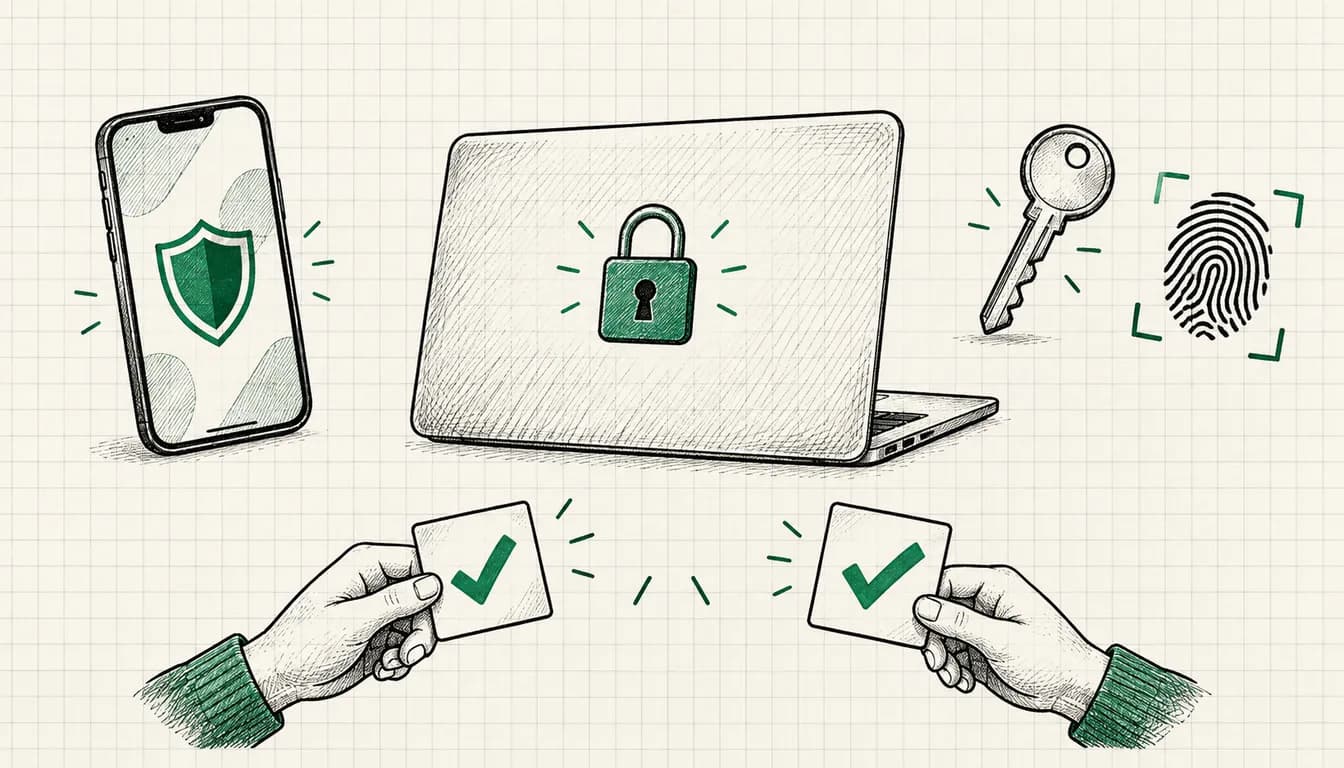
A passkey replaces the password with your device unlock, meaning fingerprint, face recognition or PIN. According to Google, passkeys can't be shared, copied, written down or accidentally given to someone else, which makes them more secure against phishing.
How to create a passkey: in your Google Account, go to “Passkeys and security keys” and click “Create a passkey”. According to Google, this works with Windows 10 and later, macOS Ventura and later, ChromeOS 109 and later, Android 9 and later and iOS 16 and later, among others. The device needs a screen lock, and Bluetooth must be on for use across devices. According to Google, hardware security keys based on the FIDO2 standard are supported too.
Two points that matter in practice:
- Waiting time. According to the Google Ads Help Center, it takes about one to two days before a new passkey works for sensitive actions in Google Ads. Google recommends waiting 48 hours. Google adds that new passkeys may be subject to a 7-day security delay, during which other authentication methods keep working. If you only set it up when you urgently need to add a user, you will be waiting.
- Campaigns keep running. According to Google, without a passkey you cannot perform sensitive actions, but your campaigns continue to serve.
From my practice, I recommend at least two passkeys for every administrator, for example on a smartphone and a laptop, or an additional hardware key. Then a lost device does not block access to all sensitive actions. Especially before seasonal peaks like Black Friday, when new access or links are suddenly needed at short notice, this should be done.
If you work with your own tools or scripts via the Google Ads API: according to Google's developer documentation, since August 5, 2026 the API has required passkeys for enforced users, and password only, codes from an authenticator app and SMS are no longer enough. According to Google, existing refresh tokens are not affected, but generating a new token is.
Multi-party approval
With multi-party approval, a second administrator has to confirm sensitive changes. According to Google, this covers adding and removing users and changing user roles, and more actions may follow. An attacker who steals a single admin login cannot simply grant themselves access or lock others out.
The details according to the Google Ads Help Center:
- The feature only applies to accounts with more than three administrators. If the account goes down to a single admin, it is paused and pending requests are canceled.
- You find requests under Admin, Access and security, in the security requests tab.
- Administrators have 20 days to approve or deny a request, after which it expires.
- Manager accounts can handle requests for their linked client accounts.
- Read-only roles and API users are exempt.
My assessment: many smaller businesses do not even have four administrators. There, the feature does not apply, and the other safeguards in this article become all the more important. Adding more administrators just for this feature is the wrong approach in my view, because every additional admin is also an additional risk.
Assigning access levels properly
Google Ads has five access levels: “Email only”, “Billing”, “Read only”, “Standard” and “Admin”. According to Google, only administrators can grant access and manage links to manager accounts, and Google advises against having just a single administrator.
This is how I assign access in practice:
- Admin only for people who really need to manage users and links. Within the company at least two, so that one person being unavailable does not paralyze the account.
- Standard for everyone who edits campaigns.
- Read only for management or controlling who just want to see the numbers.
- Billing for accounting.
- Email only for people who only need reports and notifications by email.
Then there are the recommendations from Google's security series for advertisers: review access regularly, remove people who have left right away, no shared logins, a separate Google Account for every person, and check linked manager accounts regularly.
Three settings under Admin, Access and security are particularly worthwhile:
- 2-Step Verification. In the Security tab you find the 2-Step Verification setting. Google recommends that all advertisers use 2-Step Verification to sign in. According to Google, it can take up to seven days for changes to your recovery information to take effect everywhere, so do not wait for an emergency.
- Allowed domains. In the Security tab you define which email domains users may be invited from. Invitations to addresses outside your organization are then no longer possible.
- Account activity change logs. According to Google, these log, among other things, which users access the account, who changes access, which security actions take place and which changes are made to billing. I check them once a month.
If you run a manager account, Google says you can, as its administrator, enforce 2-Step Verification and allowed domains for the sub-accounts you own.
Admin hygiene when switching agencies
The Google Ads account belongs to you, not to the agency and not to me. When switching, the order is what matters, and I describe it in detail in my post on switching Google Ads agencies. In short: first make sure at least two people from your company are administrators, then link the new provider, and only after that remove the old one.
What changes in 2026:
- According to Google, changing access and account links counts as a sensitive action. The administrators on your side should therefore set up their passkey about a week before the switch: according to Google, pairing takes one to two days, and new passkeys may be subject to a 7-day security delay. Google says other authentication methods keep working during that time.
- If multi-party approval is active, according to Google, linking an existing account to a manager account also needs approval. Plan a few days for that.
- After the switch, check under Admin, Access and security which users and which manager accounts still have access. Directly invited users and linked manager accounts are two separate ways in: if employees of the old agency were also invited directly, you remove them one by one.
I see the last point regularly in practice: the old agency's manager account has been removed, but two former employees still have direct access with Standard or Admin rights. How to recognize an agency that handles access properly is covered in my post on what good Google Ads management looks like.
Phishing schemes I know
Google stresses that it never sends unsolicited emails asking for your password. Genuine messages, according to Google, come from senders with @google.com or @ads.google.com. If someone calls claiming to be from Google, Google says you can ask for an email from an @google.com address, and you report suspicious emails or calls via the official forms.
The schemes I come across in practice:
- Fake ads for “Google Ads”. In January 2025, Malwarebytes documented a campaign in which sponsored search results for “Google Ads” led to fake sign-in pages hosted on Google Sites. Credentials and two-factor authentication codes were captured there.
- Urgent emails about a suspension or policy violation. The link leads to a sign-in page that looks like Google but sits on a different domain.
- Invitations from unknown manager accounts. I decline a link request that nobody on the team expects.
- Calls from supposed Google support. Often with a tempting offer and a request for access or a verification code.
My basic rule: I never sign in via a link from an email or an ad, but type ads.google.com myself or use a bookmark. And I never pass on a verification code to anyone, not even to “support”.
Signs of a takeover
I take these signals seriously:
- Users or invitations nobody recognizes
- Links to unknown manager accounts
- Campaigns or ads nobody on the team created
- Suddenly increased budgets or new automated rules
- Changed billing details or unexplained charges
- Notifications about access changes you did not trigger
The first look goes into the change history and the account activity change logs. There you can see who changed what and when.
After an attack: step by step
- Report it immediately. Google asks you to report a compromised account as soon as possible via the form for compromised accounts: support.google.com/google-ads/contact/compromised_account. You have to do this yourself, no service provider can do it for you.
- Collect evidence. According to Google, it helps to have timestamps from the change history, the unauthorized users, the IDs of unauthorized manager accounts, budget increases or automated rules, and your current IP address.
- Secure your Google Account. Change or reset your password and turn on 2-Step Verification. According to Google, administrators have to sign in again with a second factor and change their password. Google has a separate guide for the Google Account itself.
- What Google does. According to Google, the account is suspended while Google secures it. Campaigns the attacker created or modified are paused, compromised users and invitations are removed and unauthorized manager accounts are unlinked.
- Request reimbursement. According to Google, this is only possible once the account has been reactivated and 2-Step Verification is on. The billing investigation takes 10 to 15 business days according to Google, and credits appear as a “Service Adjustment”.
- Check your payment method. From my practice: if charges went through a credit card, I inform the bank in parallel.
If the account stays suspended afterwards or ads keep getting disapproved, read my post on what to do when your Google Ads account is suspended. I support the recovery and the clean-up afterwards as part of Google Ads Recovery (from €700). Nobody can seriously guarantee that Google will reinstate an account.
My short checklist
- Every administrator has a passkey, ideally two
- Administrators use business addresses, not private Gmail accounts
- At least two administrators from your own company
- Access levels by task, not by convenience
- 2-Step Verification on for all users, allowed domains set
- Former employees and old providers removed, including direct logins
- Change logs checked once a month
- Emergency route known: form for compromised accounts bookmarked
If you want a second pair of eyes
In a Google Ads audit (from €500), besides campaigns and tracking, I also check who has access to your account and which manager accounts are linked. Especially after a change of provider, I often find old access there.
Sources
- Google Ads Help, use a passkey to perform sensitive actions: support.google.com/google-ads/answer/16917887
- Google Ads Help, sign in to Google Ads with a passkey: support.google.com/google-ads/answer/16968810
- Search Engine Roundtable, Google Ads passkey requirement for sensitive actions (May 2026): seroundtable.com/google-ads-passkey-sensitive-actions-41286.html
- Google Ads API, OAuth security requirements: developers.google.com/google-ads/api/docs/oauth/security-requirements
- Google Ads Help, about multi-party approval for Google Ads: support.google.com/google-ads/answer/16891189
- Google Ads Help, about access levels in your Google Ads account: support.google.com/google-ads/answer/9978556
- Google Ads Help, security series for advertisers: support.google.com/google-ads/answer/2375456
- Google Ads Help, recognizing suspicious emails and calls: support.google.com/google-ads/answer/2375460
- Google Ads Help, protect your Google Ads account with 2-Step Verification: support.google.com/google-ads/answer/12864186
- Google Ads Help, allowed email domains: support.google.com/google-ads/answer/12864084
- Google Ads Help, security mandates for manager accounts: support.google.com/google-ads/answer/12865295
- Google Ads Help, account security best practices: support.google.com/google-ads/answer/12864492
- Google Ads Help, account activity change logs: support.google.com/google-ads/answer/17046805
- Google Ads Help, unlink accounts from your manager account: support.google.com/google-ads/answer/7456531
- Google Ads Help, what to do if your account is compromised: support.google.com/google-ads/answer/9355975
- Google Account Help, secure a hacked or compromised Google Account: support.google.com/accounts/answer/6294825
- Malwarebytes, The great Google Ads heist (January 2025): malwarebytes.com/blog/threat-intel/2025/01/the-great-google-ads-heist-criminals-ransack-advertiser-accounts-via-fake-google-ads
As of: October 2026