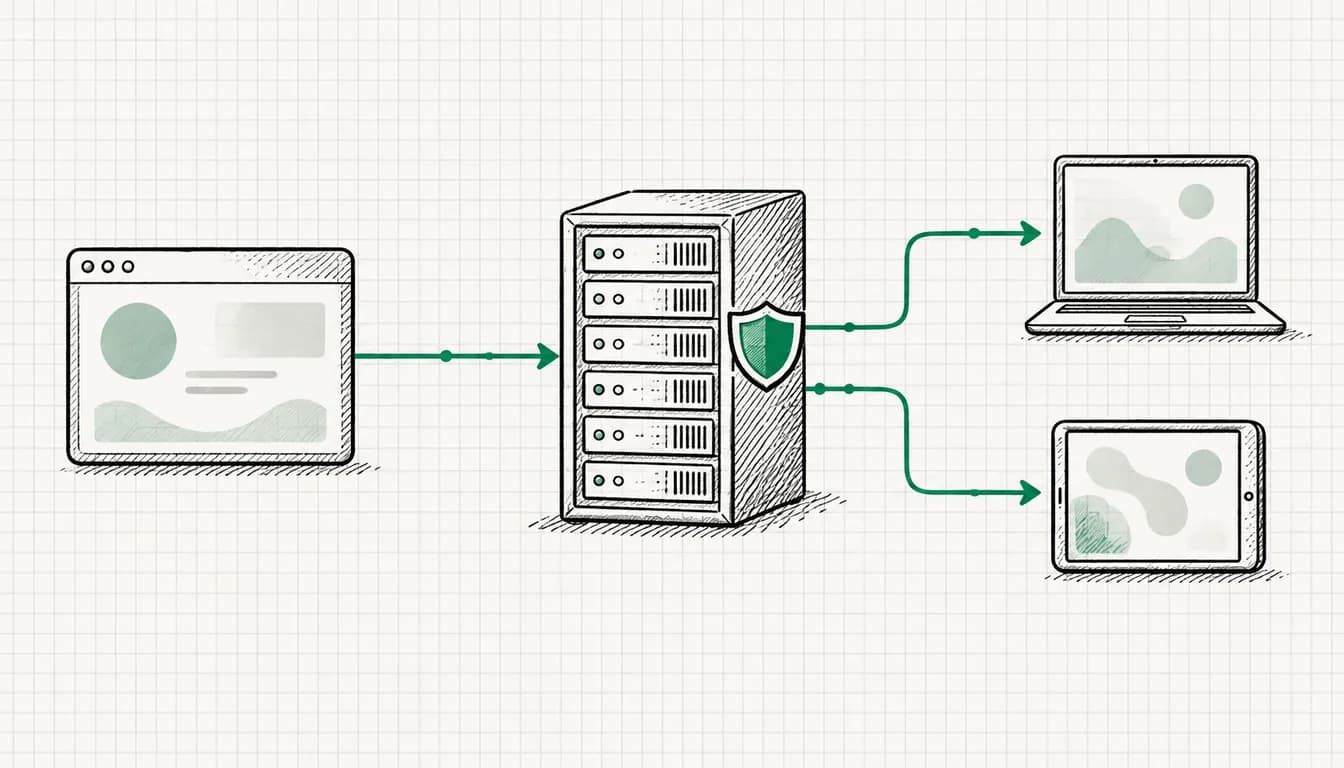



The form works, conversions are going up, the account looks fine. And still the sales team says: “Nothing useful again.” Wrong phone numbers, requests for services you do not offer, spam in every other field. When Google Ads brings many leads but few deals, in my experience the problem is rarely a single setting. The problem is that the account does not know which lead was good.
This article first covers the causes and then the chain of fixes I use to move accounts from “lots of forms” to “good leads”. Statements about Google features are based on Google Ads Help, and the sources are listed at the end. I do not explain the technical setup of offline imports and conversion values step by step here, there are separate articles for that, which I link where they fit.
How to recognize bad leads
Before you change anything, you need an honest inventory. I ask for the inquiries of the last few weeks and label every single one. From my practice, the same patterns keep showing up:
- Unreachable: wrong phone numbers, email addresses that bounce, names like “test” or random characters.
- Spam: ads for SEO services, links in the message field, inquiries in unrelated languages.
- Wrong service: job seekers, requests for services you do not offer, private customers although you only work with businesses.
- Wrong area: inquiries from regions you do not serve.
- Pure price hunters: inquiries that only want a price and never answer follow-up questions.
The important part is to count this, not just feel it. A simple table with date, source and rating is enough. Later it is also the basis for the lead stages in step 3.
The five typical causes
Spam and fake leads
Part of the bad leads are not interested people at all, but spam. This is not purely a Google Ads problem, but Google Ads counts every one of these submissions as a conversion as long as the tag fires on the thank-you page. From the bidding system’s point of view, spam looks like success.
Form bots
Bots fill in forms automatically. Without protection, that ends up in your inbox and in the conversions column. In its best practices for leads, Google explicitly names lead verification methods like reCAPTCHA, double opt-in or server-side validation to ensure lead authenticity.
Wrong search terms
The ad shows for searches that match the keyword but not your offer. Classics from my practice are searches for jobs, training, do-it-yourself guides or “free”. Clicks like that bring inquiries that never become deals.
Targeting that is too broad
Broad match keywords and automatic expansions reach more searches, including more irrelevant ones. Since September 2026 there is another factor: according to the Google Ads Developer Blog, Google is progressively upgrading Search campaigns that use campaign-level broad match or standalone automatically created assets to AI Max, after which search term matching is on by default. That can work well if the bidding goal knows the right leads. If it only knows forms, it will diligently expand towards more forms.
Optimizing for raw form submissions
In my view this is the most important cause, and it amplifies all the others. If the only conversion in the account is the form submission, Smart Bidding learns exactly one thing: generate forms. The form submission is a raw signal. It says nothing about whether a deal is behind it. A bot, a job seeker and an ideal customer count the same. The system cannot optimize for good leads because it cannot tell them apart from bad ones.
The chain of fixes in five steps
The order is deliberate: first a clean raw signal, then clean clicks, then values, then the feedback from sales, and only at the end the bidding goal. If you start with step 5, you optimize for data that is not right yet.
Step 1: Form hygiene
- Add a honeypot. An invisible field that people do not see but bots fill in anyway. Submissions with a filled honeypot are discarded and do not trigger a conversion. I work the same way on my own website.
- Choose required fields deliberately. Making phone number or location required costs some volume, but filters out many unusable inquiries. How strict you can be depends on how many inquiries you can afford to lose.
- Ask qualifying questions. A selection like “service”, “timeframe” or “private or business” helps your sales team and later the rating. What a qualified inquiry looks like in practice for photovoltaics (postcode, ownership, roof area) is shown in my solar panel ad check.
- Add extra verification. Google recommends reCAPTCHA, double opt-in or server-side validation. Which one fits depends on your form and your consent setup.
- Check the count setting. According to Google, the count setting “One” is best for leads, when only one conversion per ad click likely adds value for your business. Duplicate submissions by the same person then do not count twice.
If you use lead form assets directly in Google Ads, there is a built-in variant: according to Google, when a potential customer submits the form with a qualifying answer, the submission is automatically tagged as a qualified lead. The conversion then lands in the action “Lead form - Response qualified (Google-hosted)” under the “Qualified lead” goal.
Step 2: Search terms and negative keywords
The search terms report shows which actual searches your ads were shown for. In lead accounts I look at it weekly, not monthly.
- Sort by leads, not by clicks. Which search terms triggered forms? Do they match the inquiries your sales team marked as bad?
- Maintain negative keywords. A list with terms like job, training, free or guide is a start, the exact list depends on your industry. My negative keyword list by topic shows which terms typically bring poor-fit inquiries and comes with a CSV download.
- Look at AI Max separately. If your campaign was upgraded to AI Max, filter the “Match type” column for “AI Max”. That shows you which searches were only added by the expansion.
Step 3: Conversion values per lead stage
Without values, every conversion is worth the same. With values, the bidding system can tell them apart. When you create or edit a conversion action, Google offers three options under “Value”:
- “Use the same value for each conversion”: a fixed amount per conversion.
- “Use different values for each conversion”: according to Google, for example if you track purchases of products with different prices. You then need to customize your tag to track transaction-specific values.
- “Don’t use a value for this conversion action”: marked by Google itself as not recommended.
For leads this means in practice: every stage gets its own value, reflecting what it brings you on average. This is how I derive the value: share of leads at this stage that turn into deals, multiplied by the average contribution margin of a deal. It is an estimate, not an exact number, but it is far better than “every form is worth the same”.
| Lead stage | Where the signal comes from | Value logic |
|---|---|---|
| Form submission | Tag on the website | low, because unverified |
| Qualified lead | Rating in the CRM, upload | medium, closing rate of the stage times contribution margin |
| Converted lead | Deal in the CRM, upload | high, actual or average contribution margin |
Table scrolls sideways
The table shows the logic, not values for your account. How to set values technically, including dynamic values, is covered in the guide to setting up conversion tracking, so I will not repeat it here.
Step 4: Offline qualification with enhanced conversions for leads
The rating does not happen on the website, it happens later in sales. For Google Ads to learn about it, the information has to go back into the account. That is what enhanced conversions for leads are for: according to Google, your website sends hashed lead information, for example a hashed email address from the form, and when you import your offline conversions later, that hashed customer data is used to attribute the conversion back to the campaign.
There are three ways to get there:
- Data Manager with a CRM connection. According to Google, Data Manager enables CRM connections with third-party partners like HubSpot and Salesforce. For HubSpot, Google says all conditions must use the Lifecycle Stage field, unless combined with another condition using an “AND” operator. For Salesforce, you can import data from the “Order”, “Lead” and “Opportunity” objects, and according to Google Data Manager does not support Salesforce sandbox environments.
- Manual or scheduled uploads from your CRM export.
- API uploads. According to Google, since June 15, 2026 offline conversion imports and enhanced conversions for leads uploads have been migrating to the Data Manager API and are blocked in the Google Ads API. If you use your own script or an older tool, check this.
If you still use the classic offline conversion import with the GCLID: Google suggests upgrading to enhanced conversions for leads for more accurate and durable measurement grounded in your first-party data rather than the Google Click ID. The mechanics of uploads, API and offline import are covered in the Google Ads tracking setup guide. From the first upload and a sample file to the question of which lead stage counts as primary, I walk you through it step by step in my post on offline conversions from your CRM.
The prerequisite for all of this is a solid foundation: a tag that fires reliably and a consent solution that fits your form. If that is shaky, it is the first thing to fix, and I help with that in Google Ads tracking and with the Consent Mode setup.
Step 5: Switch bidding to qualified leads
Only when the feedback runs reliably do you switch the bidding goal. Google offers dedicated lead generation conversion goals for this, including “Qualified lead” and “Converted lead”, which according to Google let you track leads that were qualified offline or completed a chosen step in your lead conversion process. According to Google, choosing these goals automatically triggers invalid traffic protections built specifically for lead generation campaigns.
In its best practices for leads, Google names clear requirements for the conversion action you bid on:
- Minimum volume: 15 in 30 days. At least 15 conversions at the account level in the last 30 days.
- Upload ideally daily. If you use enhanced conversions for leads or offline conversion imports, upload regularly, ideally every day.
- Within 7 days. Ideally the conversion happens within 7 days of the ad interaction.
- No mixed stages. Google advises against selecting goals from multiple stages of your lead journey for optimization at the same time.
For the bid strategy there are two routes. If you can assign different values to your leads, Google recommends value-based bidding like “Maximize conversion value”, optionally with a target ROAS, and conversion value rules for fine-tuning. If quality matters to you but you cannot assign values, in my practice the usual route is “Target CPA” on the qualified lead or converted lead goal.
If your account does not reach 15 qualified leads in 30 days, in my experience I do not switch right away. The form submission then remains the bidding goal for now, but cleanly filtered and with a value, and qualified leads run alongside as a secondary action until the volume is there.
If fewer conversions come in afterwards
After a switch like this, the number in the conversions column almost always drops. That is intended: instead of every submission, only what sales rates as good counts now. The important thing is not to confuse this with a real decline. If you are not sure whether a drop comes from the switch or from a problem, the check order from my article Google Ads conversions suddenly dropped? helps.
On top of that comes the learning phase: according to Google, Smart Bidding needs a standard learning period of 7 to 14 days, and frequent changes to budgets, targets or conversion goals reset it. The first two weeks after the switch therefore say little.
When to get help
If you first want to know where the bad leads in your account come from, the Google Ads audit (from €500) is the right starting point. If the chain of fixes should run permanently, with a weekly look at search terms, uploads and lead stages, that belongs in ongoing Google Ads management (from €1,000 per month).
Sources
- Google Ads Help, Best practices for generating high-quality leads: support.google.com/google-ads/answer/13489421
- Google Ads Help, Qualified leads and converted leads: support.google.com/google-ads/answer/11459091
- Google Ads Help, Set up conversions manually (value and count): support.google.com/google-ads/answer/12718882
- Google Ads Help, About enhanced conversions for leads: support.google.com/google-ads/answer/15713840
- Google Ads Help, Updates to your enhanced conversions settings: support.google.com/google-ads/answer/16884284
- Google Ads Help, About offline conversion imports: support.google.com/google-ads/answer/2998031
- Google Ads Help, HubSpot (Data Manager): support.google.com/google-ads/answer/15293735
- Google Ads Help, Salesforce (Data Manager): support.google.com/google-ads/answer/14006189
- Google Ads Help, About qualifying responses in lead forms: support.google.com/google-ads/answer/17050941
- Google Ads Help, Reporting in AI Max for Search campaigns: support.google.com/google-ads/answer/16470459
- Google Ads Developer Blog, Migrate campaign-level broad match and automatically created assets to AI Max (August 12, 2026): ads-developers.googleblog.com/2026/08/migrate-campaign-level-broad-match-and.html
- Google Ads Help, About primary and secondary conversion actions: support.google.com/google-ads/answer/11461796
As of: September 2026